本示例设计个人资料输入界面,在界面上通过鼠标和键盘输入个人姓名、性别、年龄、籍贯和爱好等资料,然后输出到指定位置。
【Excel VBA】
在Excel VBA编程环境中添加窗体模块,在窗体上添加控件,如图2-14中进行布置。示例文件的存放路径为Samples\ch14\Excel VBA\示例.xlsm。
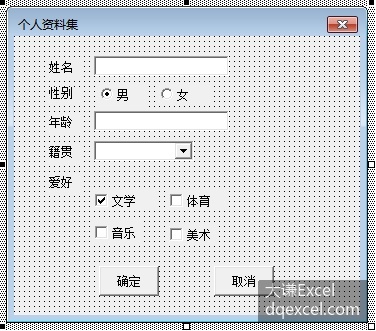
图2-14 设计界面
窗体中各控件的名称和属性设置如表2-1所示。
表2-1 设置窗体和控件的属性
| 类 型 | 名 称 | 属 性 |
|---|---|---|
| Label | lblName | Caption=”姓名” |
| Label | lblSex | Caption=”性别” |
| Label | lblAge | Caption=”年龄” |
| Label | lblNative | Caption=”籍贯” |
| Label | lblHobby | Caption=”爱好” |
| TextBox | txtName | Text=”” |
| TextBox | txtAge | Text=”” |
| OptionButton | optBoy | Caption=”男” |
| OptionButton | optGirl | Caption=”女” |
| ComboBox | cmbNative | |
| CheckBox | chkPaper | Caption=”文学” |
| CheckBox | chkPhis | Caption=”体育” |
| CheckBox | chkMusic | Caption=”音乐” |
| CheckBox | chkArt | Caption=”美术” |
| CommandButton | cmdOK | Caption=”确定” |
| CommandButton | cmdCancel | Caption=”取消” |
在窗体模块中添加下面的代码,对籍贯组合框中的数据进行初始化。
code.vba
Private Sub UserForm_Activate()
  '组合框初始化数据
  With cmbNative
    .AddItem "北京"
    .AddItem "天津"
    .AddItem "上海"
    .AddItem "重庆"
    .AddItem "广东"
    .AddItem "江苏"
    .ListIndex = 0
  End With
End Sub
单击“确定”按钮时将个人资料输出到立即窗口。在窗体模块中添加下面的cmdOK_Click单击事件过程。根据文本框和组合框的输入内容以及单选钮和核选框的选择情况组合输出文本。
code.vba
Private Sub cmdOK_Click()
  Dim strData As String
  Dim strHobby As String

  '姓名
  If txtName.Text <> "" Then
    strData = txtName.Text
  Else
    strData = "-"
  End If

  '性别
  If optBoy.Value Then
    strData = strData & ",男"
  ElseIf optGirl.Value Then
    strData = strData & ",女"
  End If

  '年龄
  If txtAge.Text <> "" Then
    strData = strData & "," & txtAge.Text & "岁"
  Else
    strData = strData & ",-岁"
  End If

  strData = strData & ",籍贯" & cmbNative.Text    '籍贯

  '爱好
  strHobby = ""
  If chkPaper.Value Then strHobby = strHobby & "文学 "
  If chkPhis.Value Then strHobby = strHobby & "体育 "
  If chkMusic.Value Then strHobby = strHobby & "音乐 "
  If chkArt.Value Then strHobby = strHobby & "美术"

  strData = strData & ",爱好" & strHobby

  '将当前的个人资料输出到立即窗口
  Debug.Print strData
End Sub
单击“取消”按钮时退出应用程序。在窗体模块中添加下面的代码。
code.vba
Private Sub cmdCancel_Click()
  Unload Me
End Sub
运行程序,在界面上输入个人资料,如图2-15所示。

图2-15 程序的运行界面
单击“确定”按钮,将个人资料输出到立即窗口,如下所示。
张三,男,25岁,籍贯北京,爱好文学 音乐
【Python】
用Python Tkinter实现上面相同的程序界面,在Python IDLE环境下添加脚本文件,输入下面的代码创建窗体和控件,并对控件进行布局。脚本文件的存放路径为Samples\ch14\Python\示例.py。
code.python
from tkinter import *
from tkinter import ttk
#创建窗体
form=Tk()
form.geometry('300x270+100+100')
#单选钮变量
g1=IntVar()
g1.set(0)
#核选框变量
c1=DoubleVar(value=True)
c2=DoubleVar()
c3=DoubleVar()
c4=DoubleVar()
#姓名
label_name=Label(form,text='姓名')
label_name.grid(row=0,column=0,padx=30,pady=(10,0))
entry_name=Entry(form,width=10)
entry_name.grid(row=0,column=1,sticky=W,pady=(10,0))
#性别
label_sex=Label(form,text='性别')
label_sex.grid(row=1,column=0,pady=5)
option_sex1=Radiobutton(form,text='男',variable=g1,value=1)
option_sex1.grid(row=1,column=1,sticky=W)
option_sex2=Radiobutton(form,text='女',variable=g1,value=0)
option_sex2.grid(row=1,column=2,sticky=W)
#年龄
label_age=Label(form,text='年龄')
label_age.grid(row=2,column=0,pady=5)
entry_age=Entry(form,width=10)
entry_age.grid(row=2,column=1,sticky=W)
#籍贯
label_native=Label(form,text='籍贯')
label_native.grid(row=3,column=0,pady=5)
combo_native=ttk.Combobox(form,width=7)
combo_native.grid(row=3,column=1,sticky=W)
combo_native['value']=('北京','上海','广东','江苏','天津','重庆')
combo_native.current(0)
#爱好
label_hobby=Label(form,text='爱好')
label_hobby.grid(row=4,column=0)
check_hobby1=Checkbutton(form,text='文学',variable=c1)
check_hobby1.grid(row=5,column=1,sticky=W)
check_hobby2=Checkbutton(form,text='体育',variable=c2)
check_hobby2.grid(row=5,column=2,sticky=W)
check_hobby3=Checkbutton(form,text='音乐',variable=c3)
check_hobby3.grid(row=6,column=1,sticky=W)
check_hobby4=Checkbutton(form,text='美术',variable=c4)
check_hobby4.grid(row=6,column=2,sticky=W)
#命令按钮
button_yes=Button(form,text='确定',width=6,command=get_data)
button_yes.grid(row=7,column=1,sticky=W,pady=15)
button_cancel=Button(form,text='取消',width=6)
button_cancel.grid(row=7,column=2,sticky=W)
form.mainloop()
“确定”命令按钮的command属性关联get_data函数,根据文本框和组合框的输入内容以及单选钮和核选框的选择情况组合输出文本。在上面脚本中添加该函数如下所示:
code.python
#获取数据并输出,绑定“确定”按钮
def get_data():
    data=[]  #数据放在列表中
    #姓名
    if len(entry_name.get())>0:  #如果填写了姓名
        data.append(entry_name.get())  #把名称添加到列表
    else:
        data.append(‘-‘)  #如果没填姓名,在列表中添加’-‘
    #性别
    if option_sex1[‘value’]==1:
        data.append(‘男’)
    else:
        data.append(‘女’)
    #年龄
    if len(entry_age.get())>0:
        data.append(int(entry_age.get()))
    else:
        data.append(‘-‘)
    #籍贯
    data.append(combo_native[‘value’][combo_native.current()])
    #爱好
    mystr=’’
    if c1.get()==True:  #如果选择了该核选框
        mystr=mystr+check_hobby1[‘text’]+’ ‘  #拼接对应的文本
    if c2.get()==True:
        mystr=mystr+check_hobby2[‘text’]+’ ‘
    if c3.get()==True:
        mystr=mystr+check_hobby3[‘text’]+’ ‘
    if c4.get()==True:
        mystr=mystr+check_hobby4[‘text’]
    data.append(mystr)
    print(data)
运行脚本,生成程序界面如图2-16所示。
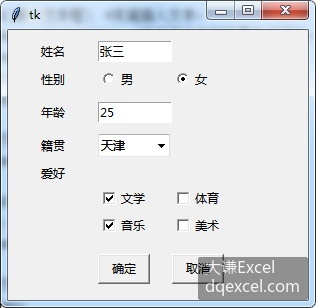
图2-16 用Python Tkinter生成界面
在界面上输入个人资料,单击“确定”按钮,在Python Shell窗口输出资料:
code.python
>>> = RESTART: …/Samples/ch14/Python/示例.py
['张三', '男', 25, '天津', '文学 音乐 ']